How to Download a Website from Wayback Machine as ZIP (Fast & Easy Guide)
Want to download a full website from the Wayback Machine and convert it into a working ZIP file you can host anywhere? This guide shows you exactly how to do it — manually (free method) and automatically (fast method). No confusing tech talk.
By the end, you'll know how to:
- download a site from archive.org
- extract pages, images, CSS & JS
- convert everything into a clean website ZIP
- upload it to hosting and make it live again
If you want to skip manual steps, you can also restore a site automatically.
Why Download a Website as ZIP?
A ZIP file makes your restored site:
- ✔ easy to upload to hosting
- ✔ simple to move, edit or rebuild
- ✔ clean and organized in one folder
- ✔ ready for SEO or relaunch
Once downloaded, you can open the ZIP and work with the website like a normal project.
Perfect if you want to:
- bring an old business site online again
- rebuild an expired domain for SEO
- recover lost content or blog articles
- restart a brand after downtime
- archive a site locally for backup
Methods to Download a Website as ZIP
There are two ways to do it:
1) Manual download (free but slow)
You save pages one by one and build your ZIP manually. Good if the site has only a few pages (like 3–10).
2) Automatic download → ZIP (fast and clean)
A tool scans Wayback snapshots and generates a ready-to-use ZIP with pages, links and assets fixed automatically.
Best option for automatic:
- ✔ large websites
- ✔ expired domains
- ✔ SEO restoration
- ✔ no tech skills needed
Step-by-Step: Download Website from Wayback as ZIP (Manual Method)
If you want to do everything by yourself, follow this guide.
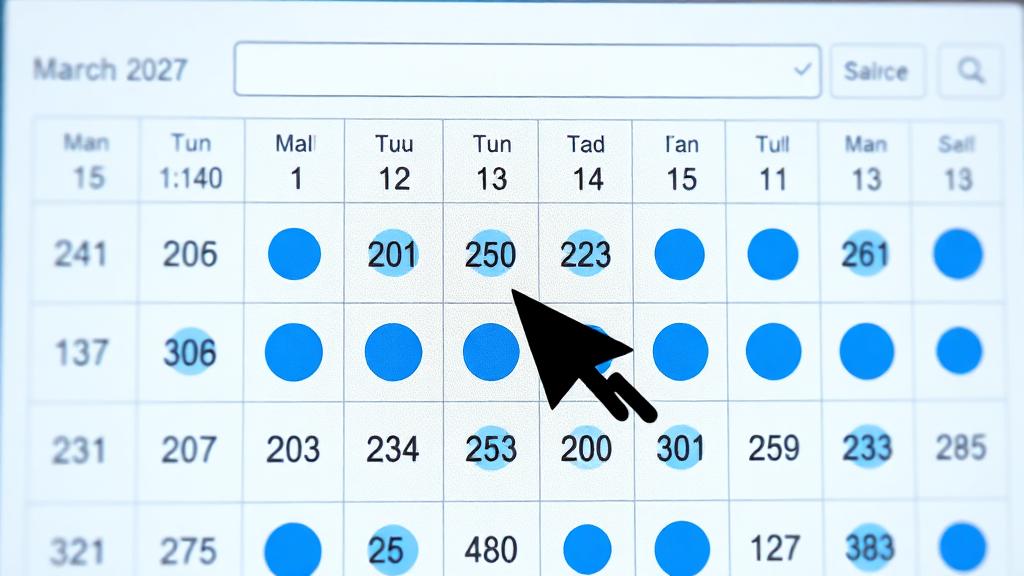
Step 1 — Go to Wayback Machine
Open: archive.org/web
Enter domain you want to download.
Example: example-site.com
Step 2 — Select a Snapshot
Pick a year → click a highlighted date.
Choose a version where:
- layout loads correctly
- navigation works
- images appear
If broken, try another date.
Step 3 — Save Pages to Your Computer
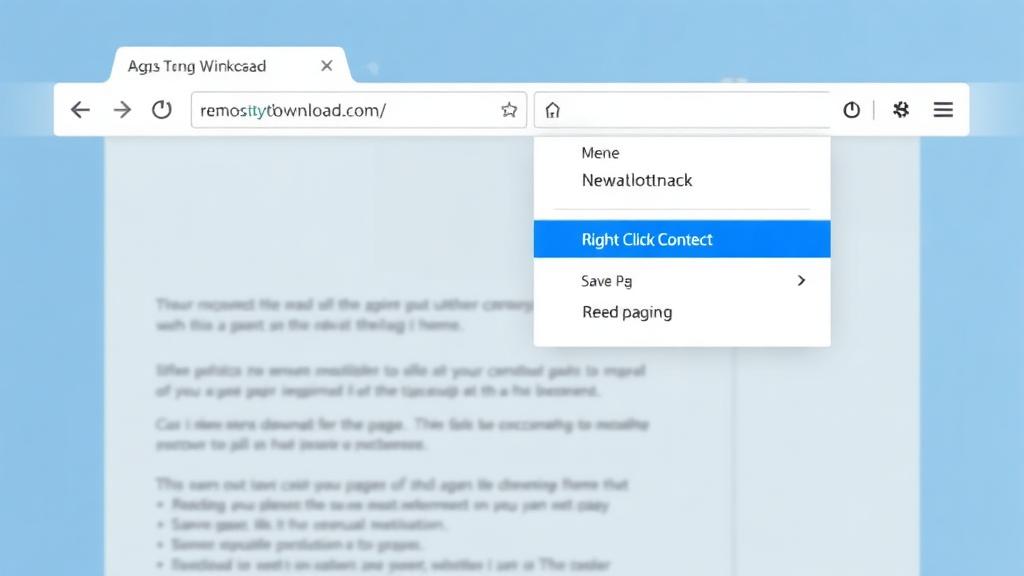
For every page you want:
Right-click in browser → Save Page As (HTML)
Save files into one folder.
Do this for:
- homepage
- inner pages
- contact/about
- products/services pages
The more pages — the longer it takes.
Step 4 — Download Images, CSS & JS
Wayback won't automatically include assets in the HTML save.
You need to manually download:
- /images/ folders
- /css/ style sheets
- /js/ scripts
Without them, your restored website will look broken (no styling/images).
Step 5 — Clean the Code
Wayback adds injected scripts & archive URLs.
Find and remove lines like:
<script src="/_static/..."></script>Fix links:
/web/20170605090000/http://example.com/about.html→ change to:
/about.htmlDo this for every page.
Step 6 — Convert to ZIP
When everything works locally:
- Select all files
- Right-click → Compress to ZIP
- Done — you now have a website ZIP
You can upload it to hosting anytime.
Faster Method: Automatic Wayback → ZIP Restore
Manual method works — but takes hours or days for larger sites. If you want a clean ZIP instantly:
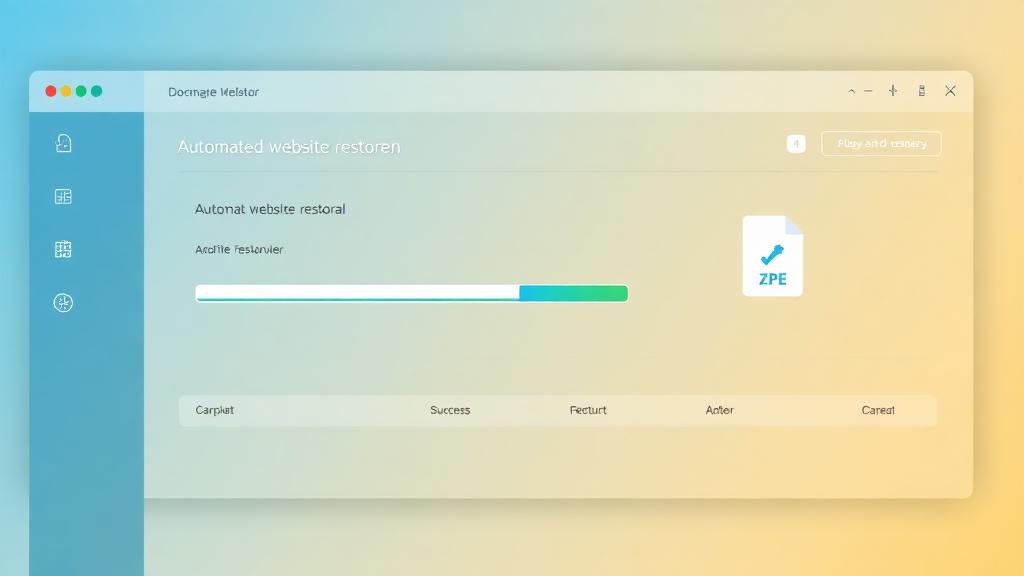
| Feature | Manual | Automatic |
|---|---|---|
| Time | Hours–days | Minutes |
| Images restored | Partial | Yes |
| Styling fixed | Manual | Auto-fixed |
| Links cleaned | Manual work | Automatic |
| Output | Messy HTML | Clean ZIP download |
Perfect for expired domains, SEO restoration, old business sites, blogs, and e-commerce.
Hosting Your ZIP Website (Make It Live)
Once you have the ZIP, hosting it is simple.
Upload using cPanel/Hosting:
- Login to hosting panel
- Go to File Manager
- Upload ZIP → Extract
- Files go into /public_html/
- Connect domain → done
Your restored website is online again.
Upload using FTP (optional)
Use FileZilla/WinSCP and drag files to server.
Common Issues & Quick Fixes
Images missing?
Download assets or use automatic restore.
Layout broken?
Missing CSS — extract /css/ folder.
Internal links not working?
Replace archived URLs with real paths.
Scripts causing errors?
Remove Wayback injected JS.
Most problems disappear if using the automatic ZIP restore instead of manual.
FAQ
Can I download a full website as one ZIP?
Yes — with automatic restoration you get a complete ZIP instantly.
Is it legal to restore old websites?
If you own the content/domain — yes. For expired domains, ensure no copyright conflict.
What if snapshots are incomplete?
Try different dates. Tools can sometimes merge multiple snapshots.
Can I restore WordPress sites too?
Yes — static HTML is restored, then you can rebuild WP if needed.
Conclusion
Downloading a website from the Wayback Machine as a ZIP is possible. You can do it manually (slow, technical) or automatically (fast, clean, one click).
- Manual best for small websites.
- Automatic best for full restoration, SEO projects and expired domains.
Related Articles
How to Restore a Website from Wayback Machine
Complete step-by-step restoration guide
Wayback Machine Downloader Guide
Everything about downloading from Wayback
Convert Wayback Archive to HTML
Clean HTML extraction guide
Archive.org Download Guide
Download from Internet Archive
Rebuild Your Site
Full site reconstruction guide
Extract Images from Wayback
Recover all website images
Download Wayback Machine Website as Clean ZIP
Skip wget, Ruby and command line — get a working ZIP in 1–4 minutes.
Working with expired domains?
Check our dedicated expired domain restoration guides
Explore our complete Wayback Machine guide collection
Browse All 20 Guides