
What You Will Learn
👉 One-click solution — Download all images from Wayback snapshots automatically →
Why Extract Images from Archive.org?
Images matter. They contain:
Restoring images is key if you are:
Without images, a restored site looks broken. Let's fix that.
Two Ways to Extract Images
| Method | Good For | Pros | Cons |
|---|---|---|---|
| Manual download | Few images/small sites | Free | Slow, one-by-one saving |
| Automatic extractor | Full sites/media | Fast, bulk download | Requires tool |
If the website has many images → automatic wins instantly.
Manual Method: Extract Images One by One
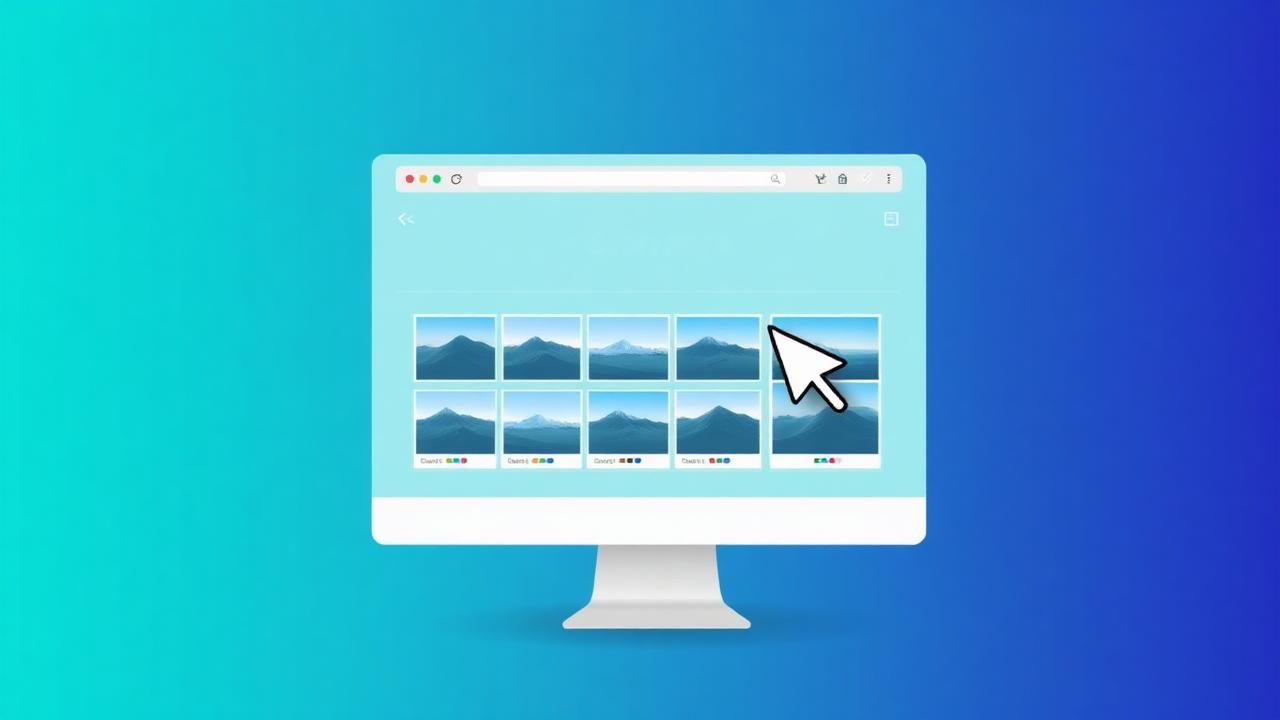
Open Snapshot on Wayback
Go to: https://archive.org/web
Enter domain → pick a date snapshot. Look for a version where images appear.
Save Images Individually
Right-click any image → Save image as… Store into a folder.
Do this for:
- Logo
- Hero images
- Gallery photos
- Blog thumbnails
Slow method, but works.
Extract Images via File Paths
If URLs look like:
You can open /images/ directory manually. Try visiting the folder directly:
Sometimes it loads image listings — if archived. Download files you need.

Use DevTools to Find Hidden Assets
Open browser Developer Tools → Network → Img
Refresh page → you'll see all loaded images.
Right-click files → Open in new tab → Save. This is useful when images don't show visually.
Repeat for Every Page
This is where manual becomes painful. Each page has unique media. You must browse and download one by one.
For websites with 50–500+ images, this can take hours.
Automatic Wayback Image Extractor (Fast Method)
If you want everything at once:

Perfect when:
Just enter domain → tool scans → download ZIP.
Combine Image Extraction with Full Website Restore
If your goal is to restore the entire website, not only images, you can download:
Instead of patching page by page manually.
How to Reuse Extracted Images
Once downloaded, you can:
Images help maintain brand identity — important for trust.
Common Issues & Fixes
| Issue | Cause | Fix |
|---|---|---|
| Broken image links | Snapshot missing asset | Try older snapshot |
| Only some images appear | Partial archive copy | Use automatic merge restore |
| Watermarked archive versions | Wayback overlay applied | Use raw asset links |
| Slow downloads | Page-by-page manual | Automatic bulk extractor |
| Hard to find folders | Deep structure | Use DevTools or tool restore |
Frequently Asked Questions
Can I extract every image from a website snapshot?
Yes, if the images exist in the archive.
Does automatic extraction save everything?
It attempts full recovery of all image assets available in Wayback.
Can I restore images AND HTML?
Yes — full restore downloads website as a clean ZIP.
Are images copyrighted?
Restoring your own website is fine. For expired domains, ensure rights to content.
Related Articles
How to Restore a Website from Wayback Machine
Complete step-by-step restoration guide
Download Website as ZIP
Get your restored files as a download
Wayback Machine Downloader Guide
Everything about downloading from Wayback
Convert Wayback Archive to HTML
Clean HTML extraction guide
Archive.org Download Guide
Download from Internet Archive
Rebuild Your Site
Full site reconstruction guide
Download Wayback Machine Website as Clean ZIP
Skip wget, Ruby and command line — get a working ZIP in 1–4 minutes.
Working with expired domains?
Check our dedicated expired domain restoration guides
Explore our complete Wayback Machine guide collection
Browse All 20 Guides