What Are CSS & JS Files and Why They Matter?
CSS = design, colors, layout. JS = interactions, scripts, menus, sliders.
Without them:
- ❗Layouts collapse
- ❗Pages look unstyled
- ❗Images overlap
- ❗Navigation breaks
Restoring them is critical for a complete rebuild.
Step 1 — Locate CSS/JS Files in Wayback
- Open snapshot in archive.org/web
- Right-click page → View Source
- Search for:
<link rel="stylesheet">and<script src="...">
Look for file paths like:
/css/style.css
/assets/theme.js
/wp-content/...css
Paths may include Wayback prefixes. Remove archive wrapper later.
Step 2 — Manual Extraction Method
Open each linked file:
- •CSS → right-click → Save As
- •JS → right-click → Save As
Create folders locally:
/css/
/js/
/images/
Rebuild folder structure exactly like original — improves load success. Good for small sites.
Step 3 — Bulk Automatic Extraction (Recommended)
Manual extraction is slow, especially for large sites. Instead, use automatic restore which outputs:
- ✔All CSS + JS downloaded
- ✔Internal paths cleaned
- ✔HTML updated automatically
- ✔Delivered as ready ZIP
Upload → site loads styled instantly.

Step 4 — Fix Asset Paths
Wayback restores often contain archive prefixes:
web.archive.org/.../file.css
Replace with clean paths:
/css/style.css
/js/main.js
You can search/replace globally. Automatic tool does this automatically.
Step 5 — Validate Style & Script Load
Open restored page locally. If layout broken:
- •CSS missing → link incorrect
- •JS errors → missing script
- •Images missing → wrong path
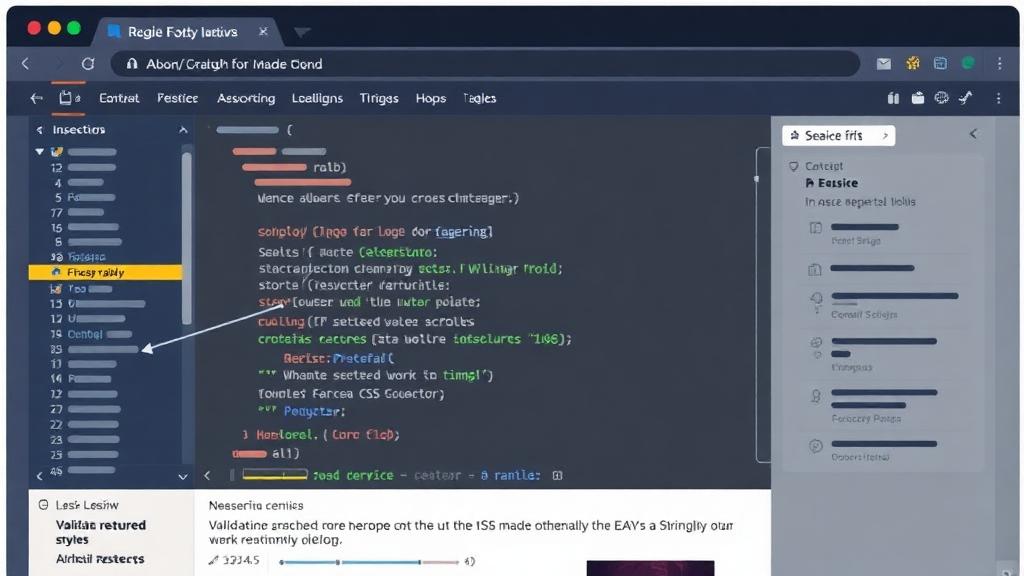
Fix using Chrome DevTools → Console + Network tab. Look for 404 asset requests.
Step 6 — Snapshot Merging for Complete Assets
Sometimes no single snapshot has everything.
- •Snapshot A → layout works
- •Snapshot B → images load
- •Snapshot C → scripts missing
Solution: Combine assets across snapshots. Automatic restore does merging automatically.
Step 7 — Optional: Convert to Modern Stack
If converting to WordPress or static site:
- ✔Use restored CSS/JS as theme base
- ✔Recreate menu + layout in builder
- ✔Import images to media library
- ✔Paste content into new pages
SEO + UX improvement opportunity.
Common Problems & Fixes
FAQ
Can I restore a website fully without CSS/JS?
Yes, but it will look broken and plain — not recommended.
Are scripts always archived?
Not always. Some external scripts may be missing.
What if a file is not available?
Use earlier snapshots or rebuild manually.
Time to extract manually?
Small site: 30–120 min. Large site: many hours. Automatic: minutes.
Conclusion
To restore a website properly, you must extract CSS & JS files along with HTML. Doing it manually is possible but slow. Automation makes it simple.
Related Articles
How to Restore a Website from Wayback Machine
Complete step-by-step restoration guide
Download Website as ZIP
Get your restored files as a download
Wayback Machine Downloader Guide
Everything about downloading from Wayback
Convert Wayback Archive to HTML
Clean HTML extraction guide
Archive.org Download Guide
Download from Internet Archive
Rebuild Your Site
Full site reconstruction guide
Download Wayback Machine Website as Clean ZIP
Skip wget, Ruby and command line — get a working ZIP in 1–4 minutes.
Working with expired domains?
Check our dedicated expired domain restoration guides
Explore our complete Wayback Machine guide collection
Browse All 20 Guides