Wayback Restore: Manual vs Automatic (Comparison Guide)
Trying to restore a website from the Wayback Machine, but not sure if you should do it manually or use an automatic restore tool? This guide compares both methods clearly — time, difficulty, output quality, costs and use cases.
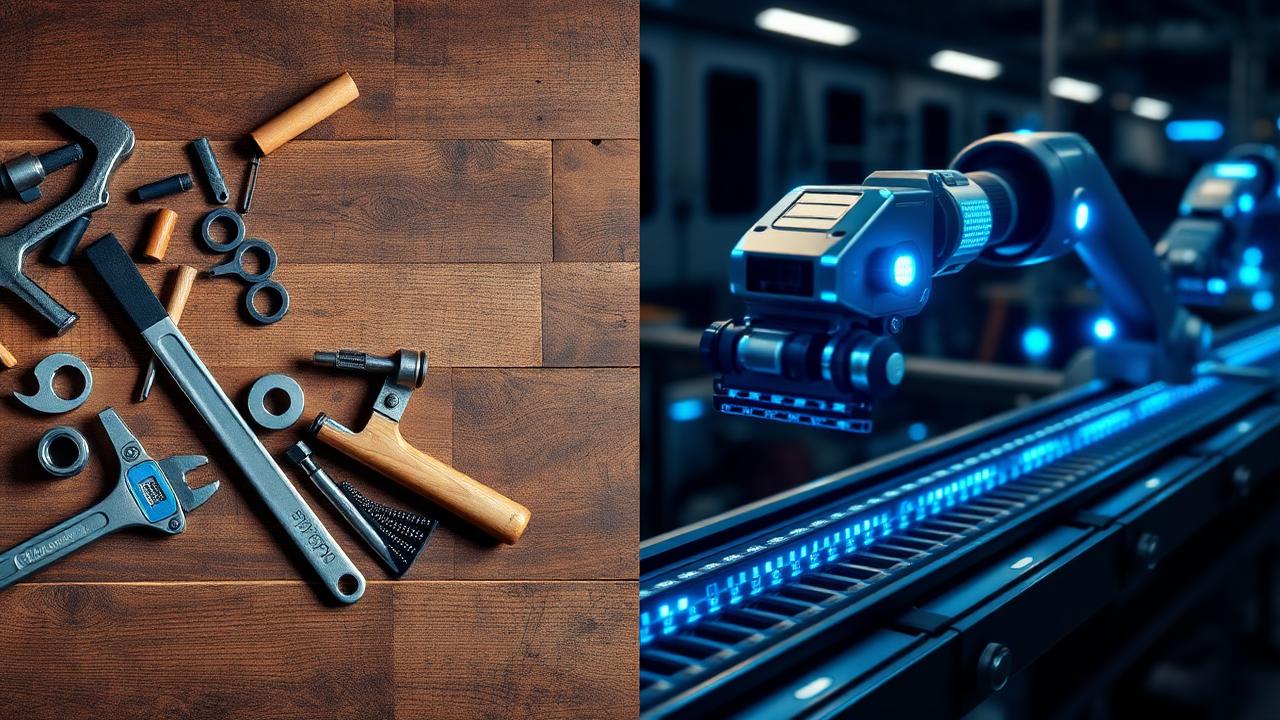
By the end, you'll know exactly when manual restore makes sense and when automatic restore is the smarter choice.
Why This Matters
Restoring a website is not just about viewing pages. You need:
- HTML files
- Images
- CSS/JS
- Working links
- Clean structure
- ZIP ready to host
The method you choose affects how long it takes and how complete the restore will be.
Manual Restore (Free Method)

Manual Wayback restoration means you:
- Browse snapshots on Wayback Machine
- Save pages one by one
- Download assets manually
- Clean the code
- Fix broken links
- Build final ZIP yourself
Pros of Manual Restore
- Free
- Full control over files
- Good for tiny websites (1–5 pages)
- Learn how the website is structured
Cons
- Slow
- Missing assets common
- CSS/JS not automatically recovered
- Links contain archive paths
- Requires technical editing
- Easy to break layout
Manual = possible but time consuming.
Automatic Restore (Fast Method)

Automatic restore tools scan snapshots and rebuild the website for you. You get a ready-to-host ZIP download.
Pros
- Full site restored in minutes
- Images, CSS & JS included
- Links auto-fixed
- Code cleaned automatically
- Perfect copy of archived site
- Best for expired domains/SEO
- Beginner-friendly
Cons
- Requires a tool
- Extremely large sites can take longer
Manual vs Automatic — Quick Comparison

| Feature | Manual Restore | Automatic Restore |
|---|---|---|
| Time needed | Hours–days | Minutes |
| Skill required | Medium/High | Beginner |
| Images included | Sometimes | Yes |
| CSS/JS included | Manual download | Auto included |
| Fix broken links | Manual | Auto fixed |
| Output | Messy HTML | Clean ZIP ready to host |
| Best for | Small sites | Full sites / SEO / expired domains |
If you value time and want the website working today → automatic method wins.
Step-by-Step Summary
Manual Restore Workflow
- Open Wayback snapshot
- Save HTML pages
- Download assets
- Remove archive code
- Fix URLs
- Build ZIP manually
- Upload to hosting
Automatic Restore Workflow
- Enter domain
- Select snapshot
- Download clean website ZIP
- Upload to hosting
Same result — but automatic saves hours.
Which Method Should You Choose?
Choose Manual If:
- 🔹 Website is tiny (under 5 pages)
- 🔹 You enjoy fixing code/files yourself
- 🔹 You want full manual control
Choose Automatic If:
- 🔹 Site has 10+ pages
- 🔹 You need images/CSS/JS restored
- 🔹 You want a complete working site
- 🔹 SEO/backlinks matter
- 🔹 You're rebuilding expired domains
- 🔹 You want results fast
For 95% of users → automatic is the better option.
Real Use Cases
| Scenario | Best Method |
|---|---|
| Recover personal portfolio | Manual ok |
| Restore full business site | Automatic |
| SEO expired domain rebuild | Automatic |
| Backup missing pages only | Manual |
| Restore visual brand + media | Automatic |
| Serve site live again quickly | Automatic |
Manual = good for simple tasks
Automatic = good for real restoration
What You Get With Automatic Restore
When using RestoreMyWebsite.com:
- Full snapshot extraction
- All pages gathered
- Missing assets handled
- Internal links fixed
- Website delivered as ZIP
- Works on any hosting provider
No coding. No file digging. No stress.
FAQ
Is manual restoration free?
Yes — but time expensive.
Does automatic include images and CSS?
Yes — full restore includes all available assets.
Can I upload restored site to cPanel?
Yes. Upload ZIP → extract → live.
Does this rebuild WordPress?
Output is static HTML. You can import content to WP after.
Conclusion
Both methods work — but results differ.
Manual is fine for learning or restoring small sites.
Automatic restore is faster, more reliable, and produces a clean complete website instantly.
Related Articles
How to Restore a Website from Wayback Machine
Complete step-by-step restoration guide
Download Website as ZIP
Get your restored files as a download
Wayback Machine Downloader Guide
Everything about downloading from Wayback
Convert Wayback Archive to HTML
Clean HTML extraction guide
Archive.org Download Guide
Download from Internet Archive
Rebuild Your Site
Full site reconstruction guide
Download Wayback Machine Website as Clean ZIP
Skip wget, Ruby and command line — get a working ZIP in 1–4 minutes.
Working with expired domains?
Check our dedicated expired domain restoration guides
Explore our complete Wayback Machine guide collection
Browse All 20 Guides