
Can You Restore a Site Without Backup?
Yes — if it was indexed or archived. Even with no hosting files, no database, no WordPress export, you can rebuild the website using:
- ✔Wayback Machine snapshots
- ✔Search engine cached pages
- ✔Automatic archive extractors
- ✔Content reconstruction tools
You don't need original server access.
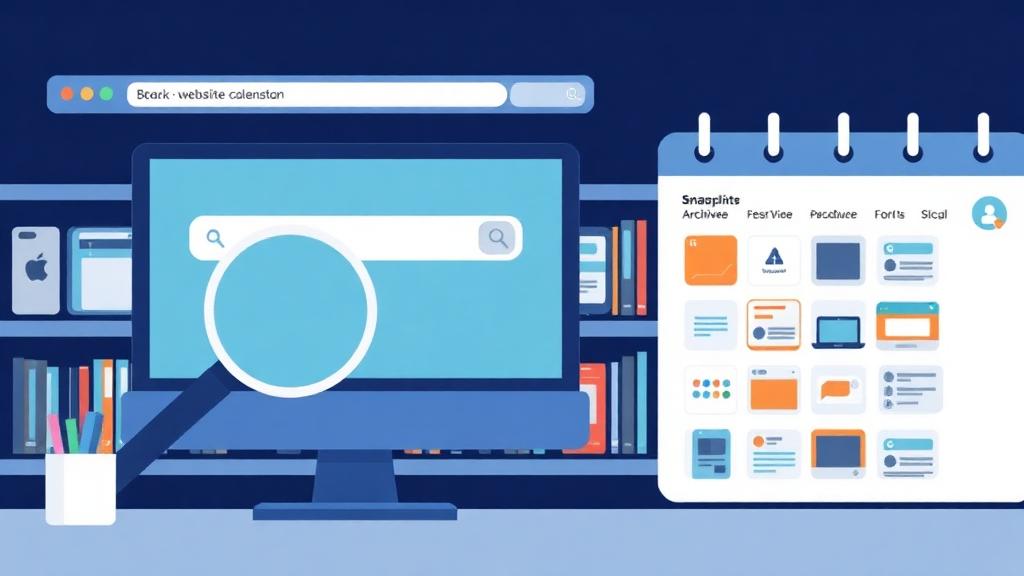
Step 1 — Check Wayback Machine for Snapshots
- Go to archive.org/web
- Enter your domain
- Browse calendar snapshots
- Click on dates where site loads properly
Check multiple years — older versions can be more complete. Look for: Homepage, Service/product pages, Blog posts, Contact page, Images and layout.
If you see the site, recovery is possible.
Step 2 — Restore Website Content
Manual Method
Suitable for small websites:
- •Open each page in archive
- •Copy text & code manually
- •Right-click → save images
- •Paste into new hosting or CMS
Time-consuming but works.
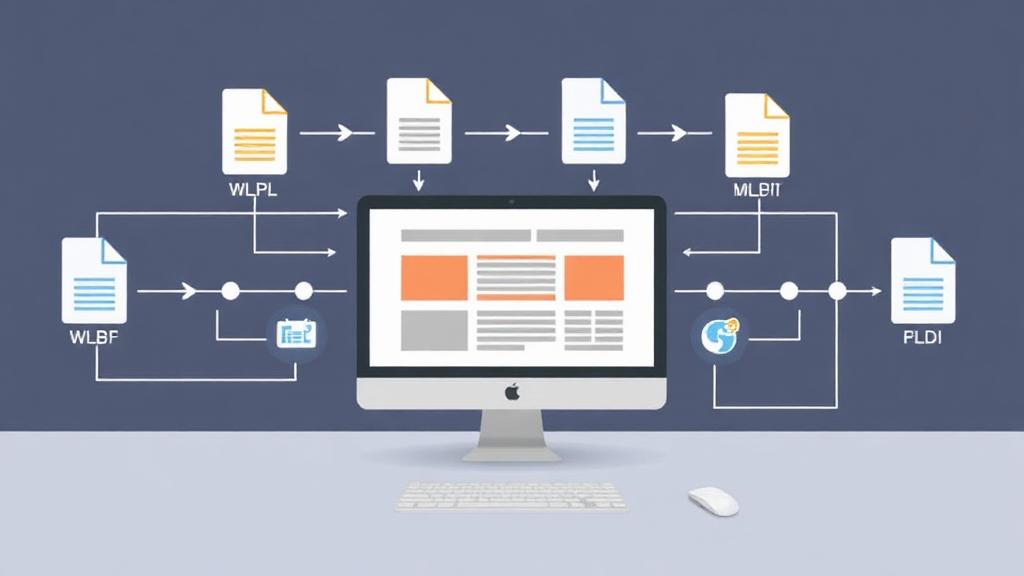
Automatic Method (Recommended)
Outputs:
- ✔All pages
- ✔CSS + JS
- ✔Images
- ✔URL structure
- ✔Internal links fixed
Delivered as ready-to-host ZIP.
Step 3 — Rebuild the Website Live Again
A) Static Website
Fastest Deployment
- •Upload ZIP to hosting directory
- •Extract files
- •Domain goes live immediately
Works for blogs, landing pages, company sites, archives, PBN.
B) Convert to WordPress
More Flexible
- •Restore content → import manually
- •Upload images to Media Library
- •Rebuild pages & navigation
- •Add theme + plugins
Best if you plan to grow long term.
Step 4 — Recover Media Files
Images sometimes fail in newer snapshots. Fix by:
- ✔Trying another snapshot date
- ✔Using archived file viewer
- ✔Bulk extractor tool
Automatic restore does this in one step.
Step 5 — Fix Internal Links
Wayback links must be cleaned:
https://web.archive.org/.../yourdomain.com/page.html → /page.html
Fix: Menu, Footer, Blog links. Properly linked = better crawl & SEO.
Step 6 — Restore SEO Value
After relaunch:
- ✔Create sitemap.xml
- ✔Submit to Google Search Console
- ✔Request indexing for key pages
- ✔Monitor coverage & crawl stats
- ✔Rebuild backlinks if needed
Old SEO power can return fast.
Step 7 — Improve + Modernize
Once restored: Update content, Add new pages, Fix formatting, Add CTA buttons, Secure with SSL, Optimize for speed.
Give it a fresh 2025 touch.
Common Recovery Problems
FAQ
Can I recover my site with no backup?
Yes — if archived online.
What if images do not load?
Use alternate snapshots or automatic extraction.
Can SEO be recovered?
Often yes — if URL structure matches or redirects are applied.
How long does recovery take?
Manual = hours or days. Automatic = minutes.
Conclusion
A deleted website without backup doesn't have to be the end. Wayback recovery allows you to rebuild lost content, restore structure, and bring your site back online quickly.
Related Articles
How to Restore a Website from Wayback Machine
Complete step-by-step restoration guide
Download Website as ZIP
Get your restored files as a download
Wayback Machine Downloader Guide
Everything about downloading from Wayback
Convert Wayback Archive to HTML
Clean HTML extraction guide
Archive.org Download Guide
Download from Internet Archive
Rebuild Your Site
Full site reconstruction guide
Download Wayback Machine Website as Clean ZIP
Skip wget, Ruby and command line — get a working ZIP in 1–4 minutes.
Working with expired domains?
Check our dedicated expired domain restoration guides
Explore our complete Wayback Machine guide collection
Browse All 20 Guides