How to Restore a WordPress Website Using Wayback Machine
Lost your WordPress website? Hosting expired, files deleted or no backup? It happens more often than you think. If your site is archived on the Wayback Machine, you can restore it — even if the original WordPress files are gone.

In this guide, you'll learn:
- How to restore a WordPress site using Wayback Machine
- Manual method vs automatic restore
- How to download HTML files and media
- How to rebuild it back into WordPress
- How to bring the site live again
Can You Restore a WordPress Site From Wayback Machine?
Yes — but not with .php or database files.
The Wayback Machine stores static versions of your WordPress site:
What's Preserved:
- Pages & posts text
- Images & design
- Layout & frontend
- Menus & structure
Not Stored:
- wp-admin
- Plugins
- Database
- Dynamic features
So the process is:
- Recover site as HTML
- Rebuild or convert back to WordPress if needed
Method 1: Manual WordPress Restore (HTML Extract)
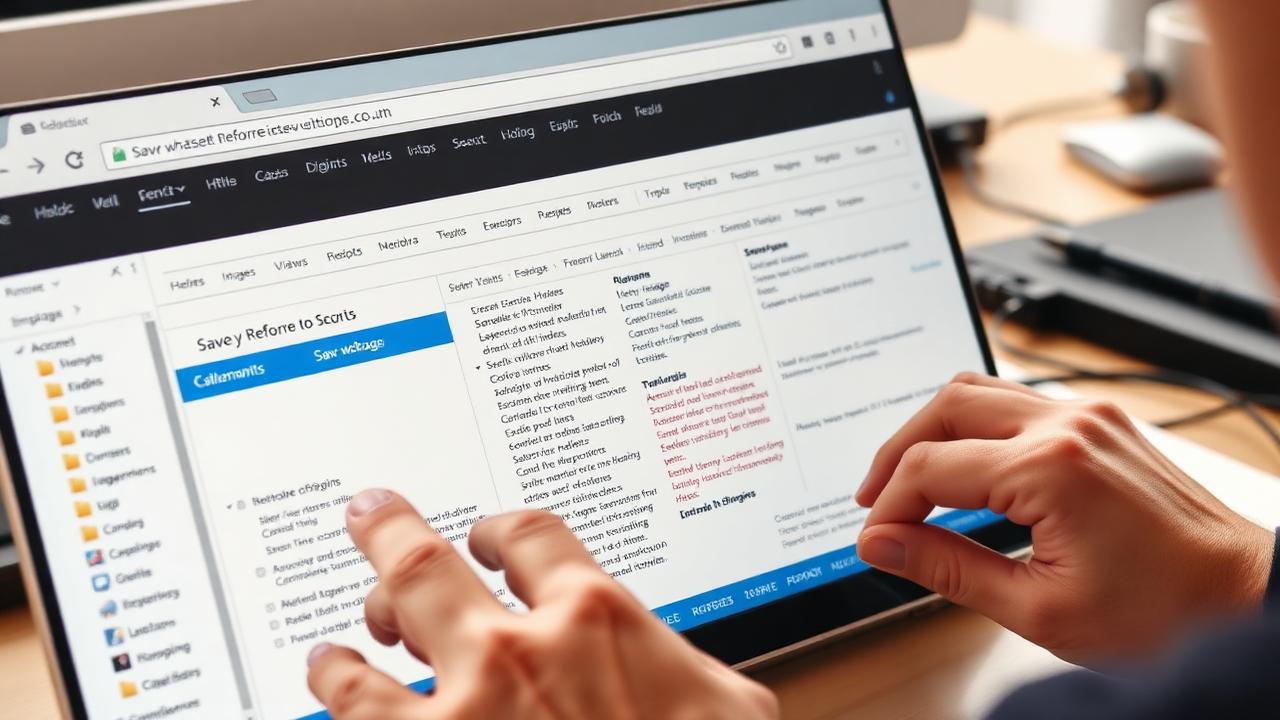
Step 1 — Open Wayback Snapshot
Go to: archive.org/web
Enter domain → choose a snapshot date. Make sure the page loads with images and styling.
Step 2 — Download Important Pages
Right-click → Save Page As → HTML Only
Download:
- Homepage
- About, Contact, Blog pages
- Key landing pages
- Product/service pages
Save inside one folder.
Step 3 — Extract Images & Assets
Download:
/wp-content/uploads/
/css/
/js/
These files hold your visual site identity. Use browser DevTools → Network → save assets.
Step 4 — Clean Archive Code
Wayback adds tracking scripts. Remove lines like:
<link rel="stylesheet" href="/_static/...">
Fix URLs:
→ change to:
/page/
Step 5 — Host as Static HTML (Option A)
Upload extracted site to your server:
- Upload ZIP to hosting
- Extract into /public_html/
- Connect domain
- Site is live again (as static HTML)
Fast restore, no plugins needed.
Step 6 — Convert Back to WordPress (Option B)
If you want a real WP site again:
Option 1: Manual copy-paste
- Install WordPress fresh
- Create pages
- Paste restored content
- Upload images via Media Library
Option 2: Theme rebuild
- Recreate theme visually with Elementor/Divi
- Use original site design as reference
Option 3: Hire template conversion
Restore HTML → convert to WP template
Recommended if you want: blogging features, SEO plugins, easy editing, dynamic pages.
Method 2: Automatic WordPress Restore (Fast & Clean)

Manual recovery works — but it's slow and requires editing. If you want everything done automatically:
You get:
- HTML restoration
- Images, CSS, JS included
- Internal links fixed
- Export ready to rebuild WP
- No messy code
Then WordPress rebuild becomes easy. Perfect for:
- Expired domain recovery
- Lost business sites
- Client restorations
- SEO projects
How to Upload Restored Site to Hosting

If using static HTML:
- Login to cPanel
- Open File Manager
- Upload ZIP
- Extract into public_html
- Domain → Live instantly
If converting to WordPress:
- Install fresh WordPress
- Create pages
- Paste content + upload images
- Copy layout using builder
- Add menus, links, SEO plugin
Works surprisingly well.
Tips for Better WordPress Restoration
- ⭐Use multiple snapshots for missing pages
- ⭐Rebuild menus last — after URL structure is set
- ⭐Restore blog posts manually via copy/paste
- ⭐Add SEO meta titles again (Yoast/RankMath)
- ⭐Compress images before uploading for speed
Common Problems & Fixes
| Issue | Fix |
|---|---|
| Missing images | Try another snapshot or auto restore |
| Broken CSS | Download /css/ folder |
| Blog posts missing | Copy content manually |
| Layout different | Theme not preserved — rebuild visually |
| Want full WP backend | Convert HTML back to WordPress |
Automatic tools solve most issues.
FAQ
Can Wayback restore WordPress database?
No — only frontend snapshots. You must rebuild content manually or via tool.
Will plugins come back?
No, only visible HTML content is restored.
Can I convert HTML back to WordPress?
Yes — copy content manually or rebuild templates.
Can I make the site live again?
Yes — host static files or rebuild into WordPress.
Conclusion
You can restore a WordPress website using Wayback Machine, even without backups. Manual restore works, but takes time. Automatic recovery gives you a clean ZIP website ready for hosting or WordPress import.
Related Articles
How to Restore a Website from Wayback Machine
Complete step-by-step restoration guide
Download Website as ZIP
Get your restored files as a download
Wayback Machine Downloader Guide
Everything about downloading from Wayback
Convert Wayback Archive to HTML
Clean HTML extraction guide
Archive.org Download Guide
Download from Internet Archive
Rebuild Your Site
Full site reconstruction guide
Download Wayback Machine Website as Clean ZIP
Skip wget, Ruby and command line — get a working ZIP in 1–4 minutes.
Working with expired domains?
Check our dedicated expired domain restoration guides
Explore our complete Wayback Machine guide collection
Browse All 20 Guides