Websites disappear all the time. Maybe the hosting expired, maybe a project was forgotten, maybe a domain was sold, or a backup was lost. But many people don't know this: old websites often still exist online — saved inside the internet archive.
If your site (or someone else's) was archived, you can bring it back. This guide shows you step-by-step how to restore a website from the Wayback Machine and download it as a working ZIP that you can open, edit, or upload again.
You don't need coding skills. You don't need special tools. Just a domain, a few clicks, and a bit of patience.
What is the Wayback Machine?
The Wayback Machine is an online archive that saves past versions of websites. It has billions of snapshots — sometimes even websites from the late 90s.
If a page was crawled and saved, you can view it like it was back then. Think of it like a time machine for the internet.
Why Restore a Website?
Here are common reasons people do this:
- You lost your website when hosting expired
- You bought an expired domain and want the old content
- A client website disappeared
- You want to recover SEO content from the past
- You want to revive a project or portfolio
- You want files for reference or rebuild
Sometimes the live site is gone — but the archive saved it. Restoring it can save hours (or months) of work.
What You Can Get Back
When a website is restored, you may recover:
Can Be Restored
- • HTML pages
- • Images and media (if saved)
- • Text, blog posts, layout
- • CSS styles, JS files
- • Internal page structure
Cannot Be Restored
- • Content that was never archived
- • Files blocked by robots.txt
- • Databases, admin panels
- • User accounts
Still — for static content, recovery is often surprisingly complete.
1Enter the Domain
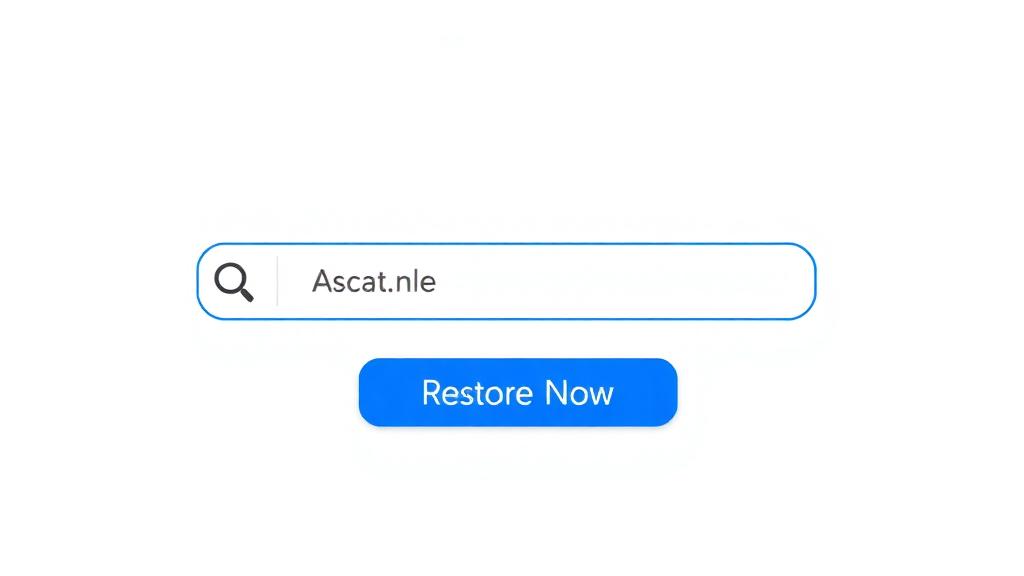
Type the domain name you want to recover. For example: myoldwebsite.com
Click Restore Now. You'll see available archived versions from different dates.
2Choose a Snapshot Version
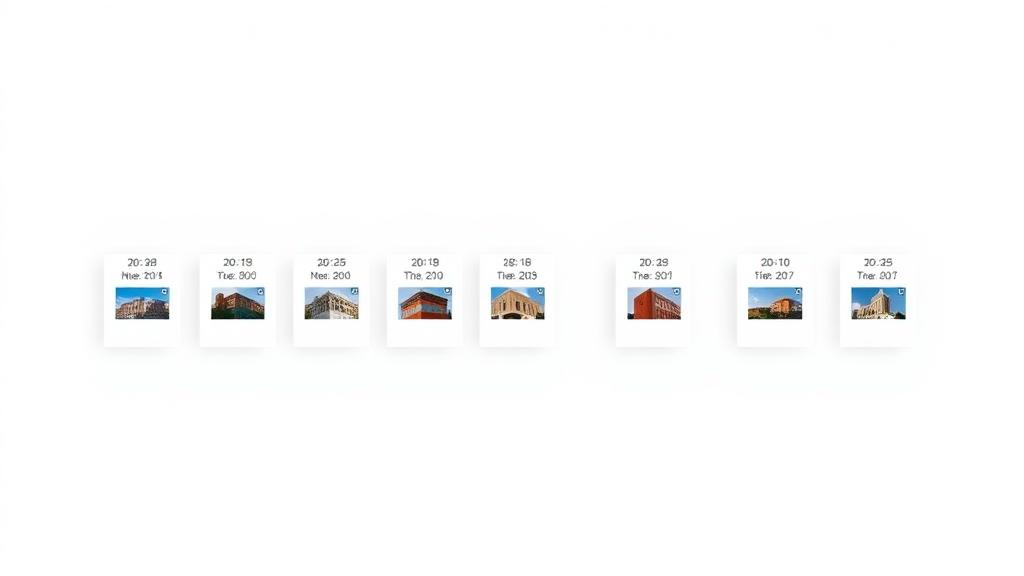
You'll see a list of saved website versions across years and months. Pick the one you want — usually the newest or most complete version.
💡 Tip: If images are missing in one snapshot, try an older one — sometimes they are saved there.
3We Rebuild the Website for You
Instead of saving every page manually, our system automatically:
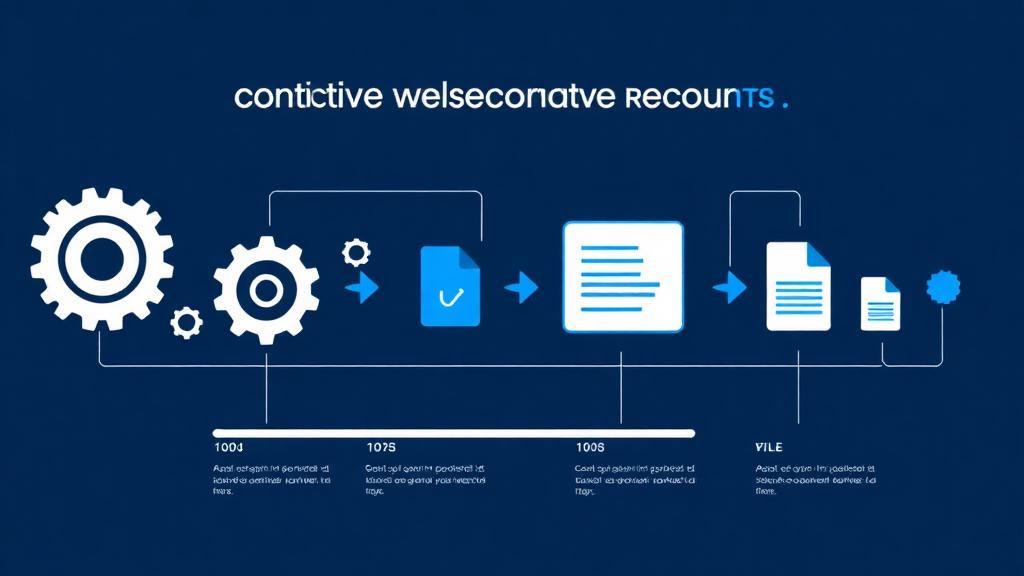
You don't have to code or download page-by-page. The system does the heavy work.
4Download Your ZIP
When the restore is complete, you can:
- Download the full ZIP
- View it offline
- Upload to any hosting
- Rebuild, edit, or redesign it
- Use content for SEO or projects
You also get an email notification when the file is ready.
Small to medium sites finish in 1–4 minutes. Large sites may take longer — but you don't need to wait on-screen.
Restore Examples
| Website Type | Result |
|---|---|
| Old blog | Posts + layout usually restored |
| Business site | Text + pages often complete |
| Portfolio | Images may depend on archive saves |
| SEO expired domain | Content recovered for rebuilding |
| Documentation/wiki | Often very complete |
This is common work for domain investors, agencies, SEO teams and owners who lost a site years ago.
Manual vs Automatic Restore
You could download pages manually from Wayback — but it's painful.
| Manual Way | Automatic Restore |
|---|---|
| Save each page yourself | Everything collected at once |
| Fix broken links manually | Links auto-cleaned |
| Images often missing | Archives fetched when available |
| Takes hours or days | Takes minutes |
Automation makes a huge difference.
What to Do After You Restore
Once you have your ZIP, you can:
- Upload the site to hosting
- Convert to WordPress later
- Modernize the design
- Use articles for SEO
- Save as backup or reference
Some users even build from the content to rebuild ranking on expired domains.
Frequently Asked Questions
Do I need to own the domain?
No. You only need an archived version to exist.
Will everything be restored?
Everything that exists in the archive will be included.
What if no snapshots exist?
Then recovery is not possible — and you don't pay.
Is payment one-time?
Yes, no subscription required.
Try Restoring a Website Now
Just enter a domain and see if snapshots exist. No risk — you pay only when you choose a version to restore.
Bring old websites back to life — fast and simple.