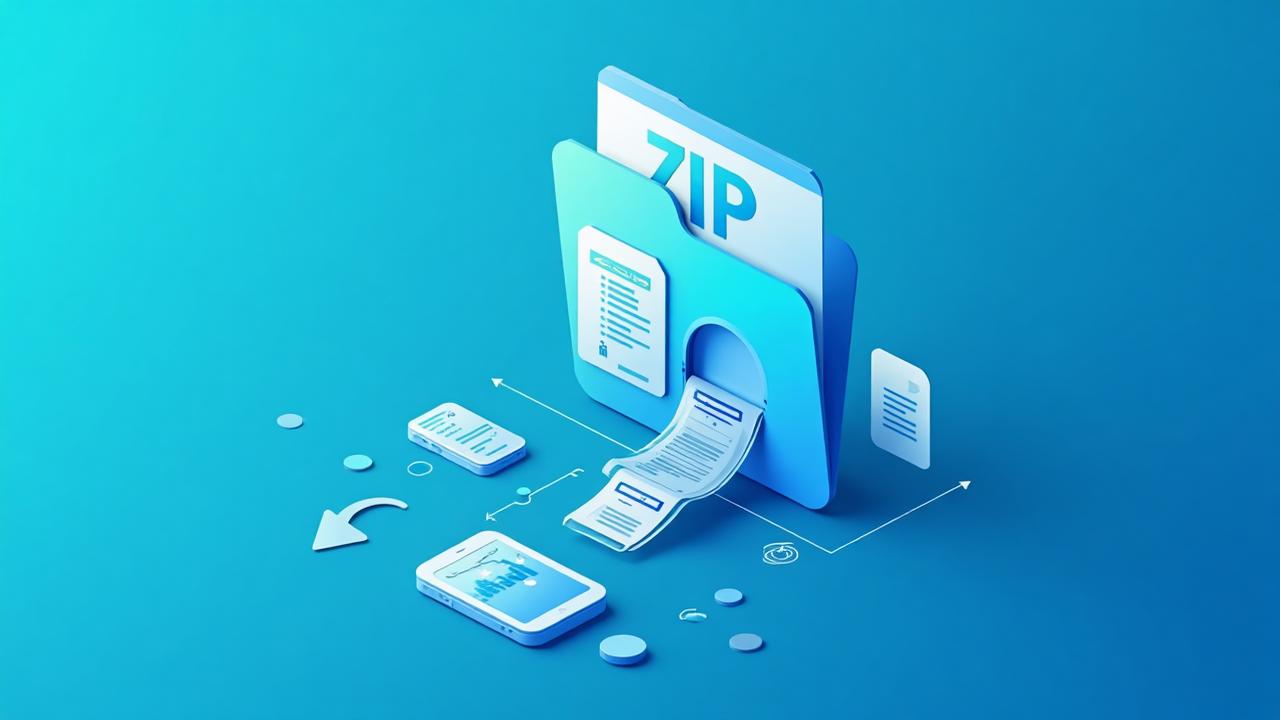
Why restore a website from an expired domain?
People restore expired domains every day for many reasons:
- You lost your site because renewal was missed
- You purchased an expired domain for SEO
- You need old content to rebuild a business website
- You want old blog posts, pages, or design back
- You want to re-launch the brand with original material
- You want to access text and assets that no longer exist locally
- You want to recover authority content for ranking potential
Expired domains can still hold huge value, especially if the site had good content or backlinks. Restoring it gives you a fast foundation to bring it back to life.
What you can recover
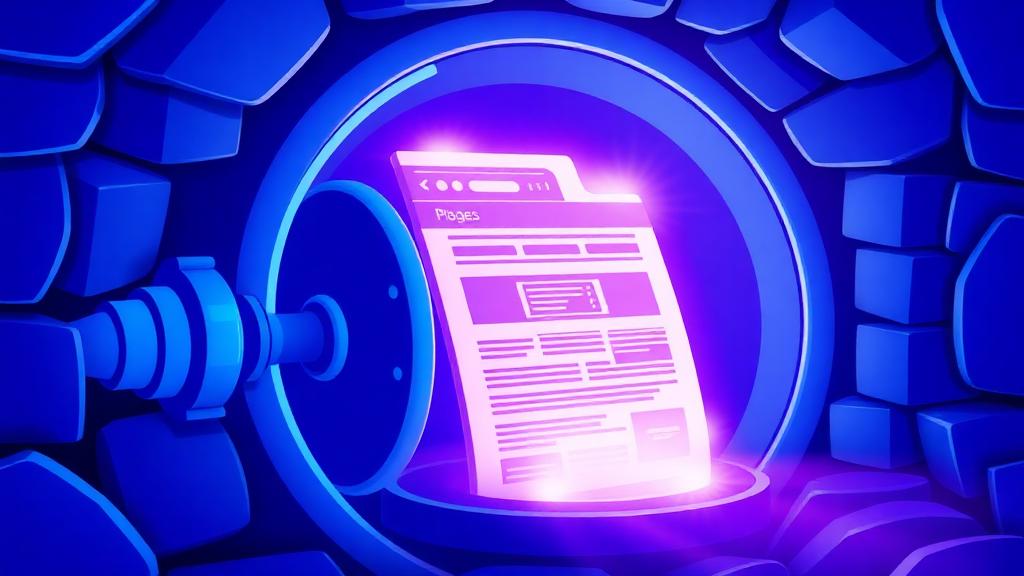
If archived snapshots exist, you may get:
- HTML pages
- Text, layout, fonts
- Blog content and static pages
- Images, CSS, JS files (if saved)
- Internal link structure
- A full working folder of files
Think of it as getting the old website back in a downloadable package.
How to Restore an Expired Domain Website
Here's the simple method:
1Enter the expired domain
Go to RestoreMyWebsite.com and enter the domain that expired.
Example: myoldbusiness.com
Click Restore to search for snapshots.
2Choose a saved version of the site
You'll see archived copies from different dates and years. Click through to preview them — pick the version you want back.
Tip: Older snapshots sometimes contain more complete content.
3Start the restore
Log in or create an account, choose a restore plan based on page size, and confirm. The system automatically rebuilds the website files for you.
No manual work needed.
4Download your restored website
When finished, you'll get:
- A ZIP with the full site
- Pages, layout, images (if archived)
- Working local copy
- Files you can host anywhere
You will also get an email when the ZIP is ready to download. Smaller sites take 1–3 minutes. Larger sites take longer — but you don't need to wait on the page.
Why not rebuild manually?
You can copy content manually from archive pages, but it's slow.
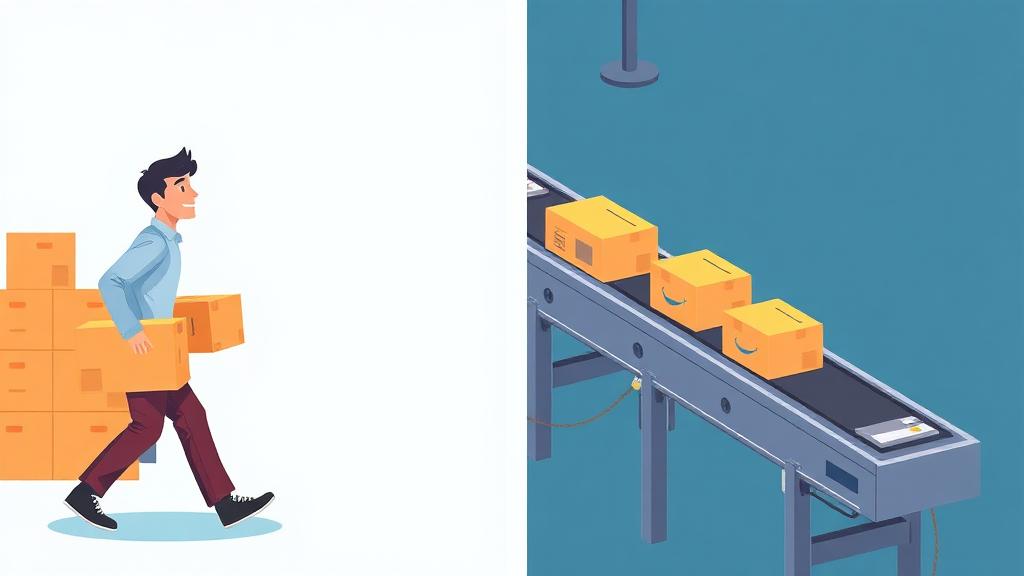
| Manual restore | Automatic restore |
|---|---|
| Copy pages one by one | Full restore in minutes |
| Manually download images | Media auto-fetched if archived |
| Fix links yourself | Links auto-corrected |
| Technical work needed | No tech required |
| Hours or days of labor | Automated + fast |
Automation saves time and stress.
What to do after restoring?

After downloading your ZIP, you can:
- Upload it to a web host to make it live again
- Convert it into WordPress or a modern theme
- Use text & pages for SEO recovery
- Refresh and redesign content
- Redirect to a new website for link value
- Keep a permanent backup copy
Many domain investors restore expired domains for ranking advantage.
FAQ — Expired Domain Recovery
Restore an expired domain now
Enter the domain below and check archived versions. If snapshots exist — you can revive the website today.